Better Payment is a WordPress payment plugin that can help you manage your transactions and payments, donations, fundraising, and so on. With this payment solution, you can easily create a payment form in Gutenberg to give your forms an interactive appearance for your customers.
Note: Make sure you’ve installed and activated Better Payment on your WordPress website.
How To Configure And Style Payment Forms In Gutenberg Using Better Payment? #
Follow the step-by-step guide below to learn how you can configure and style a payment form in Gutenberg.
First, go to your WordPress dashboard and open the page where you want to add a Better Payment button. Search for the ‘Payment Form’ block from Better Payment, then drag and drop it on your preferred page section.
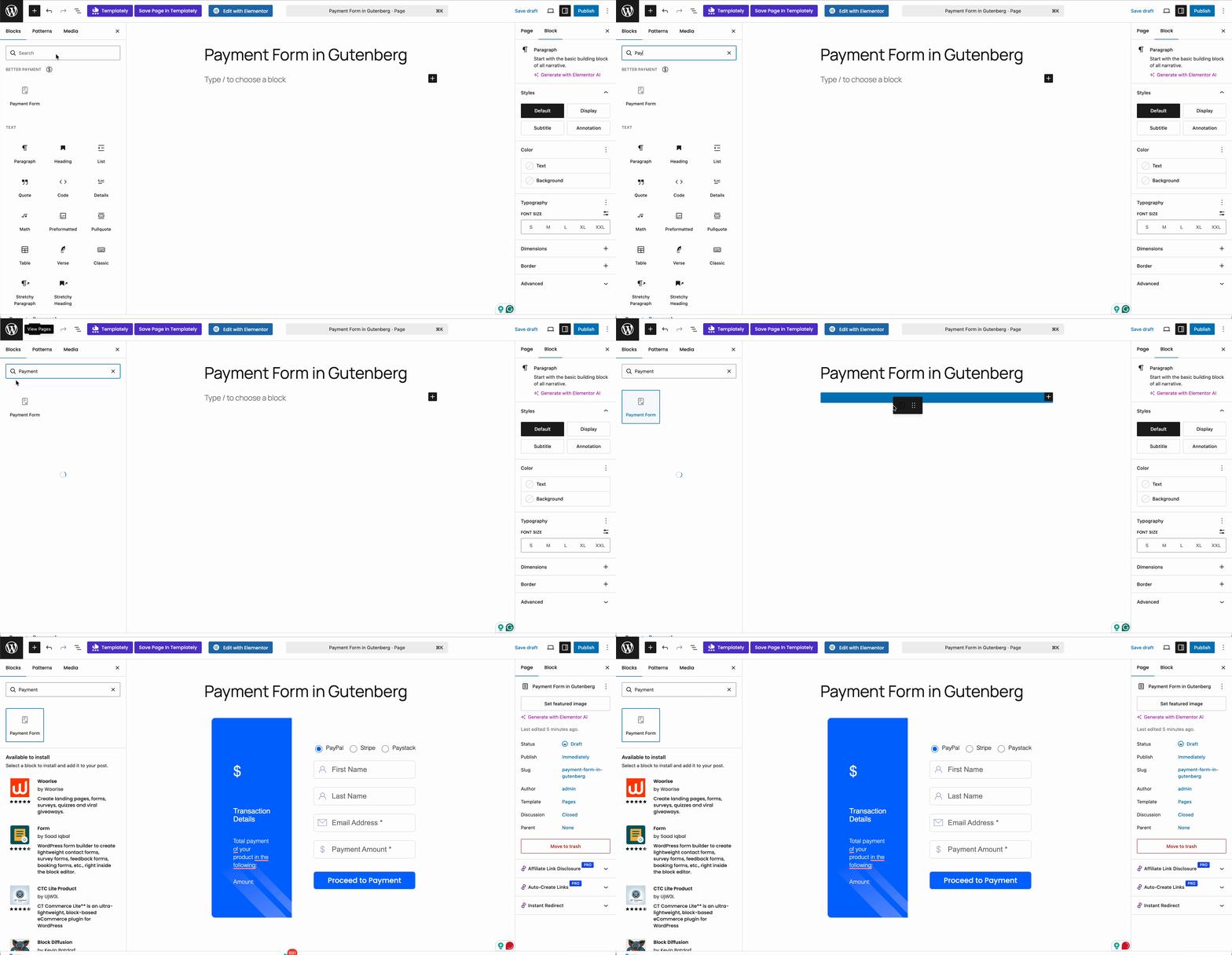
Configure Payment Form in Gutenberg Using Better Payment #
After adding the Better Payment block, follow the guidelines below to design your payment form in Gutenberg using Better Payment.
i. Payment Settings #
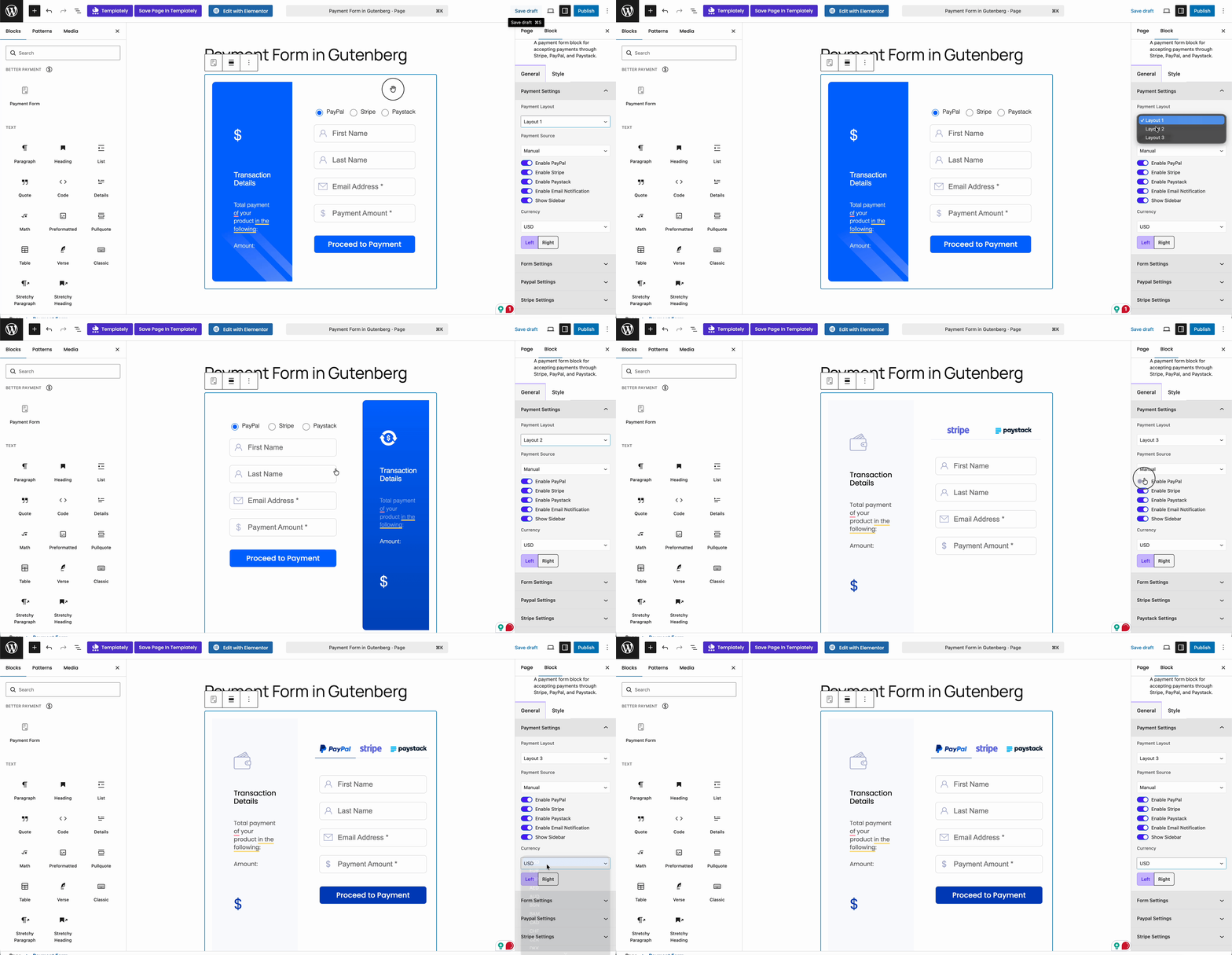
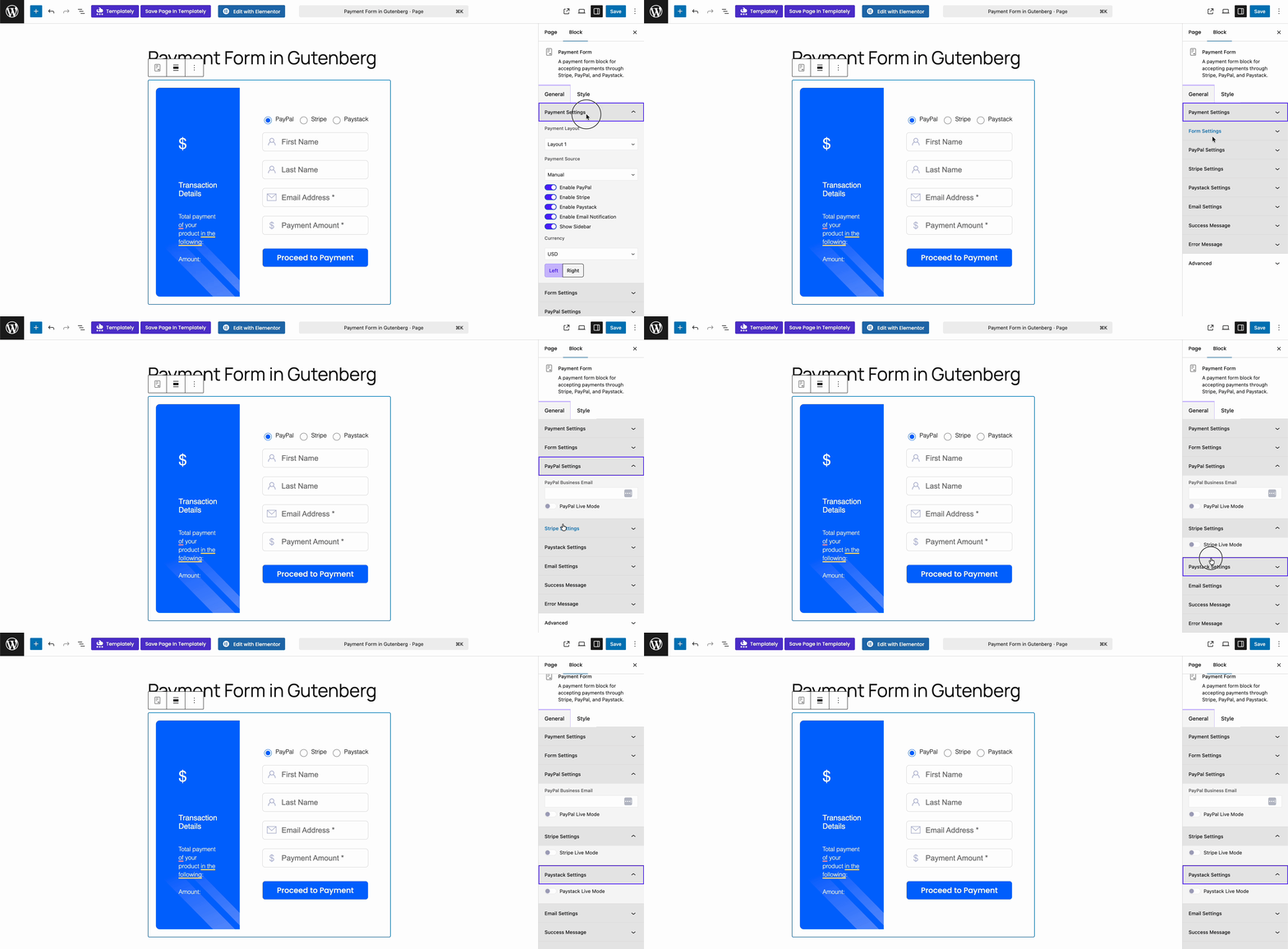
Better Payment comes with three Layout Options in its Gutenberg payment form. You can choose any depending on your design needs. Plus, on the Payment Settings tab, you can also choose to enable PayPal, Stripe & Paystack with a single button. Moreover, you can change the currency and alignment from this tab.
ii. Form Settings #
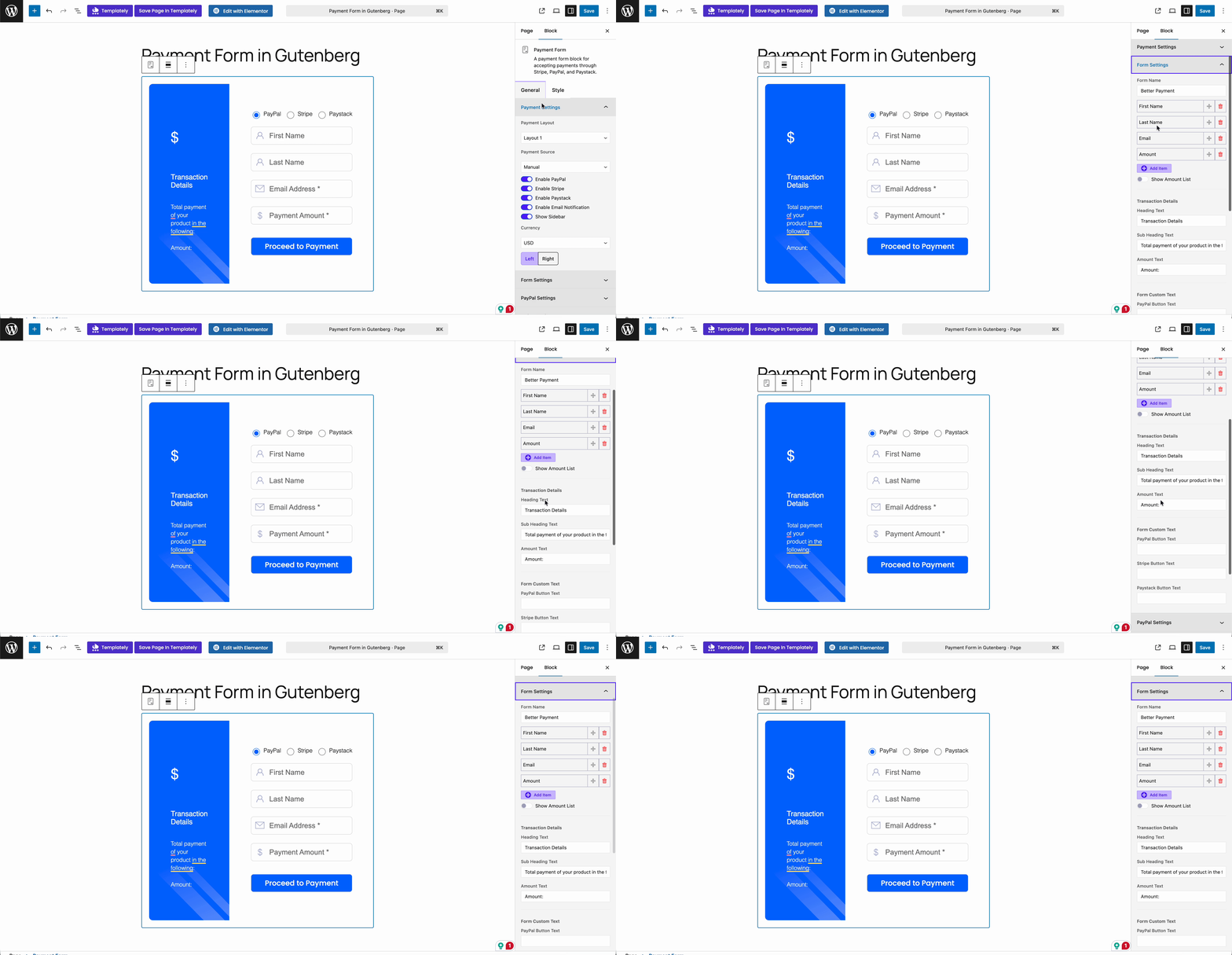
From the ‘From Settings’, you can change the form field’s name, type, icons, and others. You will get full freedom to adjust the form input text and make your checkout eye-catching for your customers.
iii. Payment Method Settings (PayPal, Stripe and Paystack) #
From ‘PayPal’, ‘Stripe’ and ‘Paystack’, you can set the public key, secret key, and business email ID based on the payment methods and enable the live button to start accepting payments.
iv. Email Settings #
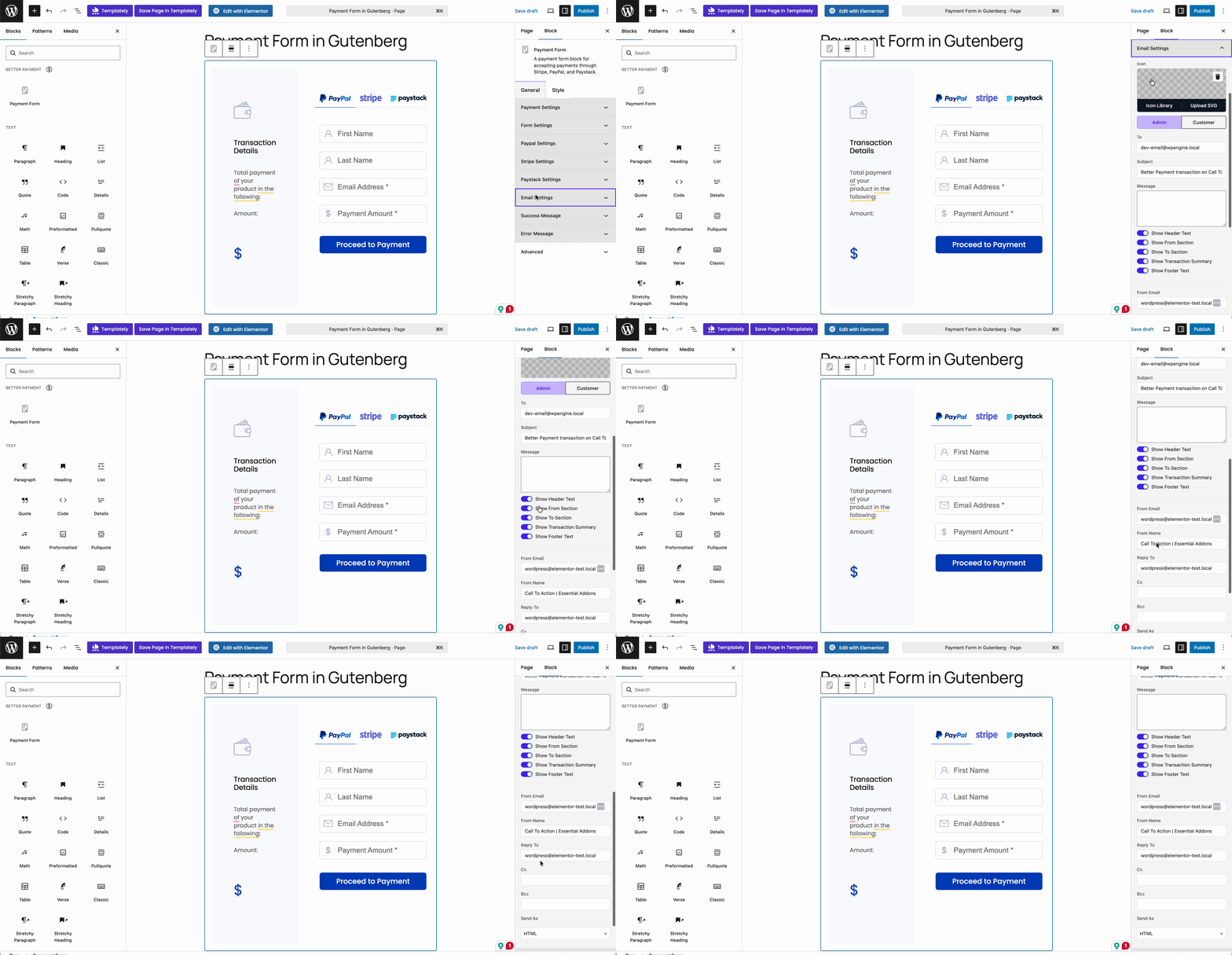
In the ‘Email Settings’ section, you can set emails both for admins and customers. It has options to add a generic subject, message, email name, address, cc, bcc, and more.
v. Success Message & Error Message #
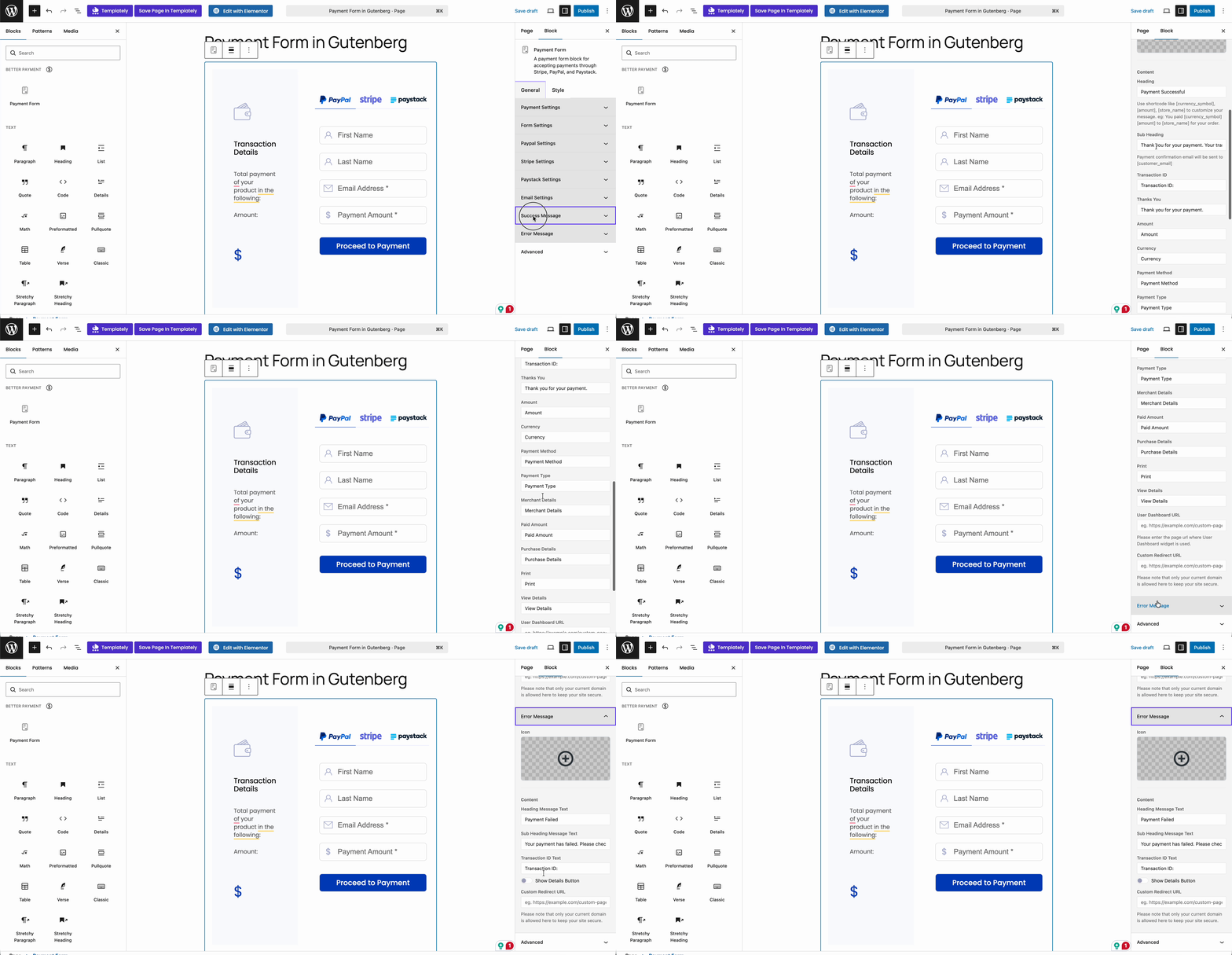
From the ‘Success Message’ section, you can adjust icon style, heading style, thank you message style, etc., easily. Similarly, style the typography, icon, margin, background, etc., from the ‘Error Message’ section.
Style Payment Form In Gutenberg Using Better Payment #
By switching to the ‘Style’ tab, you will find options to customize the form sidebar, text, and container style; change payment settings, the form container, the header, the form field, and many more, according to your design needs to fit the payment form.
Final Outcome #
After styling your payment forms in Gutenberg and publishing on your website, you will find an outcome like the following image:
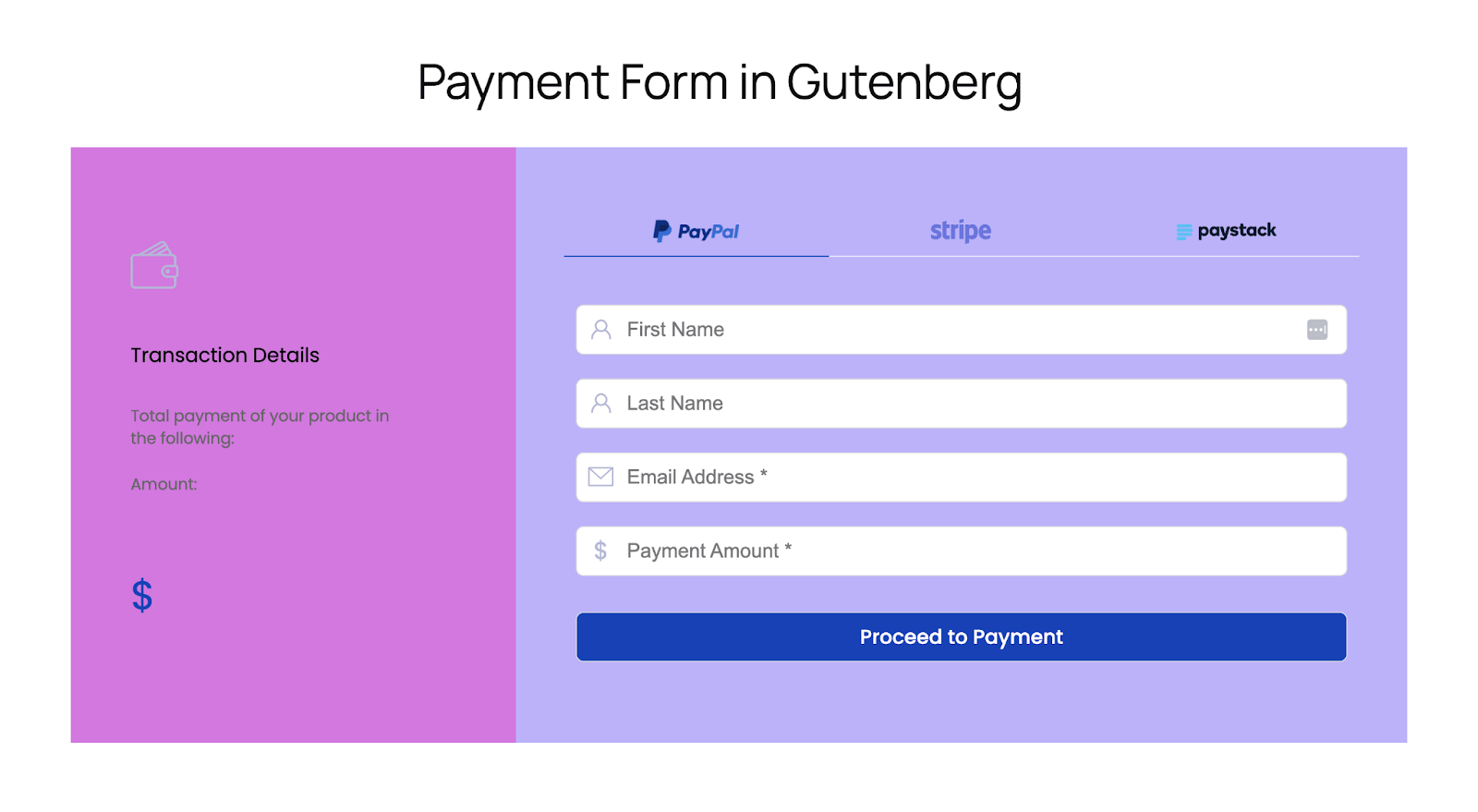
By following this guideline, you can style payment forms in Gutenberg using the Better Payment plugin for WordPress.
Getting stuck? Feel free to contact our support team for further assistance.