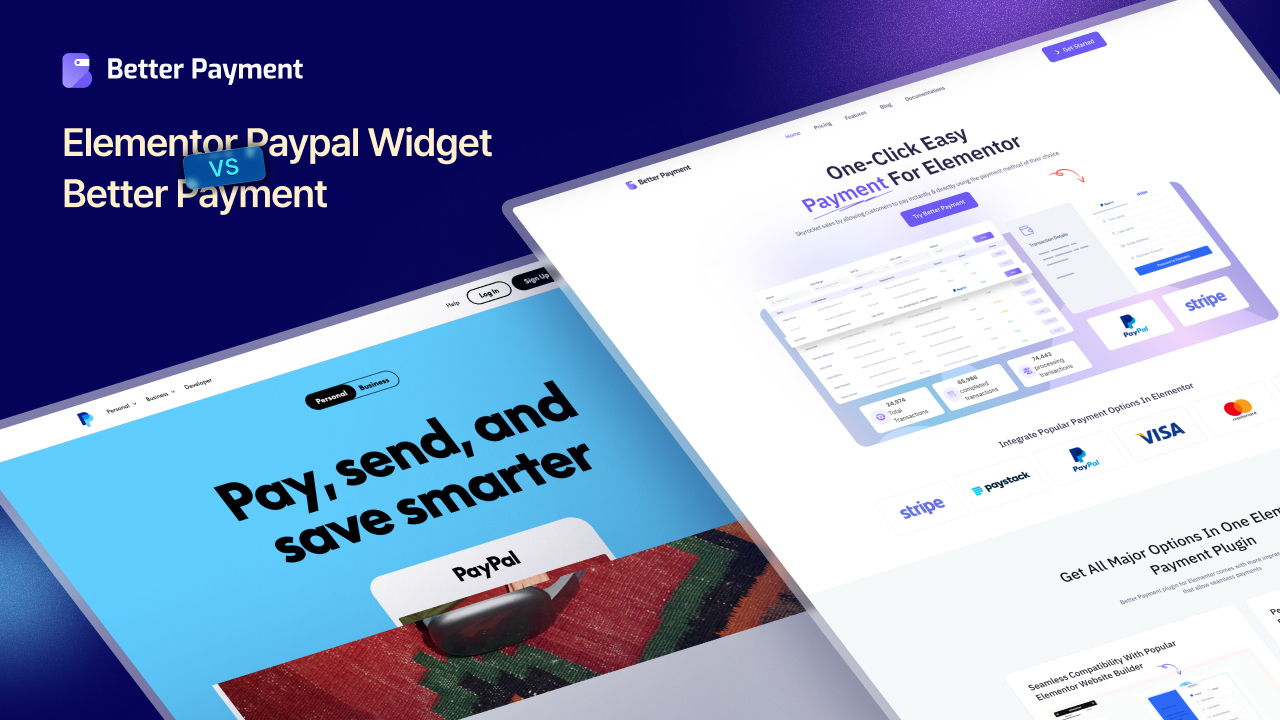
Are you an Elementor user running an online business and wondering which payment tool will give your customers a smooth checkout experience? You are not alone. Many site owners are comparing the Elementor PayPal Widget vs Better Payment to figure out which Elementor payment solution is right for them.
In this guide, we will break down both options, so you know exactly how each works, their pros and cons and how they can improve your Elementor checkout experience. Let us find the payment gateway for Elementor that fits your needs.
Understanding the Elementor PayPal Widget
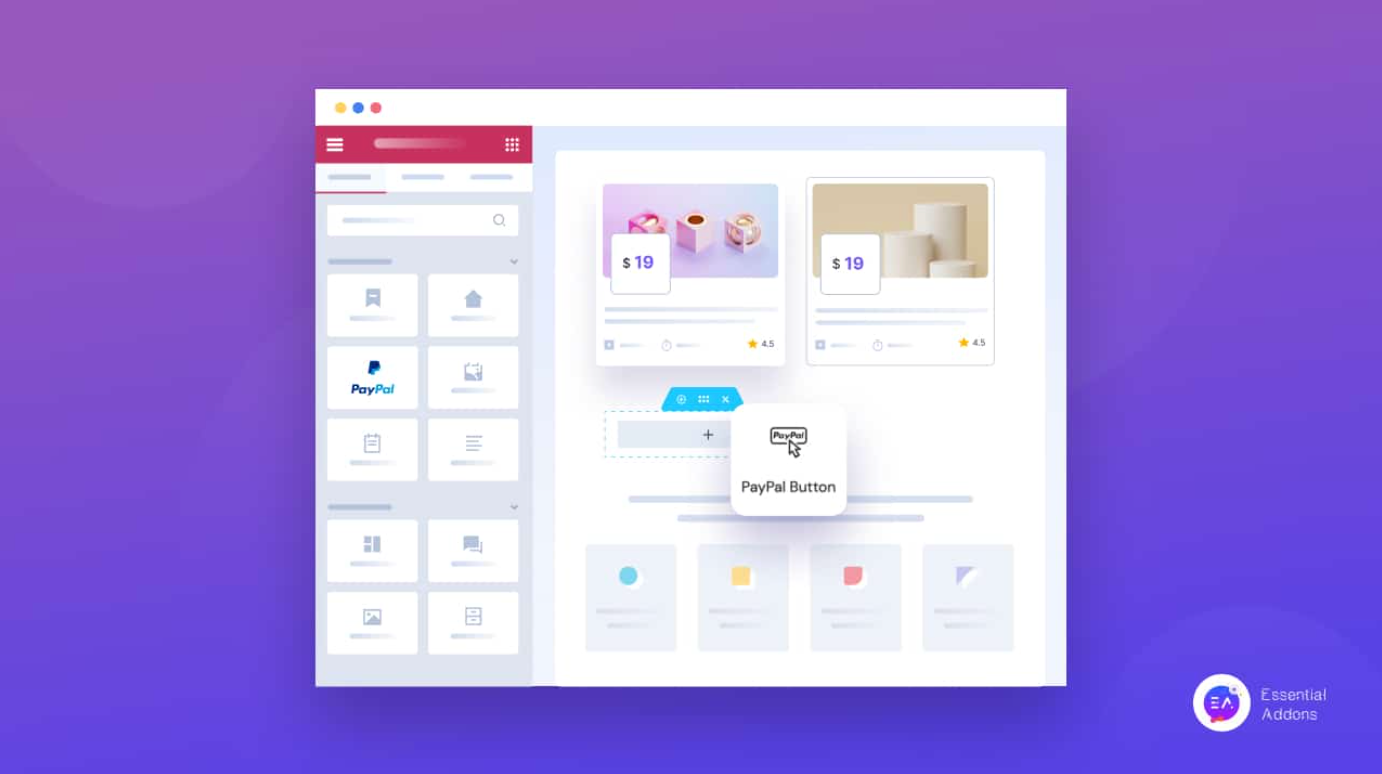
Before we talk about Better Payment, let us get a clear picture of Elementor’s built-in PayPal Button widget. Introduced as part of Elementor Pro, this widget was a game-changer for users who wanted a quick way to accept payments without installing extra plugins. It is essentially a PayPal integration for Elementor that comes out of the box.
When you use the PayPal Button widget, you can easily collect payments for a variety of purposes. Whether you want to sell a single product (say an e-book), raise funds for a cause or offer a subscription service, you can make the transaction process smooth. Everything is handled via the trusted PayPal platform and you do not need to write a single line of code.
To set it up, you simply drag the widget onto your page, enter your PayPal account email and configure a few details like the item name, price and currency. Elementor even lets you choose the transaction type (Checkout for one-time purchases, Donation or Subscription) and set things like recurring billing or suggested donation amounts.
Key features of the Elementor PayPal widget include:
- Built-in PayPal payments: Accept PayPal payments on any page with a simple button. You will not require any complex eCommerce setup, making it perfect for quick transactions.
- Multiple transaction types: You can switch between one-time payments, donations or subscriptions in the widget settings, each with its relevant options.
- Customization options: Elementor lets you style the PayPal button’s appearance (text, color, icon) and set a post-payment redirect URL or custom messages for errors.
- Trusted gateway: Since it is PayPal, customers often recognize and trust it instantly. It is an Elementor payment gateway that highlights PayPal’s brand trust, especially useful if some customers prefer not to use credit cards.
One important thing to note is that the Elementor PayPal Button widget is an Elementor Pro feature. This means if you are on Elementor’s free version, you will not have access to this widget without upgrading to Pro.
For users on a tight budget or those who only need a PayPal option, this requirement can be a bit of a roadblock. Plus, if you need to customize further, you might need to combine it with an Elementor form or consider an alternative solution and here, Better Payment can be an efficient and powerful alternative for you.
Introducing Better Payment for Elementor: A Versatile WordPress Payment Plugin

Now, let us introduce Better Payment, a dedicated WordPress payment plugin. Better Payment is designed to give you a frictionless Elementor payment gateway solution, going beyond the basic PayPal button. It works as a separate plugin that integrates seamlessly with Elementor, even if you are just using Elementor Free.
Better Payment provides a checkout form widget that you can drag into your Elementor pages, similar to how you would use any other widget. But instead of being limited to PayPal only, Better Payment lets you connect multiple payment gateways like PayPal, Stripe (for credit/debit cards), Paystack, etc, all in the same form.
This means you can let your customers choose their preferred payment processing platforms and methods. For example, a user can decide to pay by card (via Stripe) or by logging into PayPal, all through one single checkout form. By supporting Stripe and standard card payments, Better Payment covers those customers who might not want to use PayPal at all.
Not only does Better Payment support multiple gateways, but it also supports multiple currencies. In fact, it currently works with 22 global currencies, so you can sell to international customers easily. This is a big plus if your business or donations attract a worldwide audience. They can see prices in their local currency and pay accordingly.
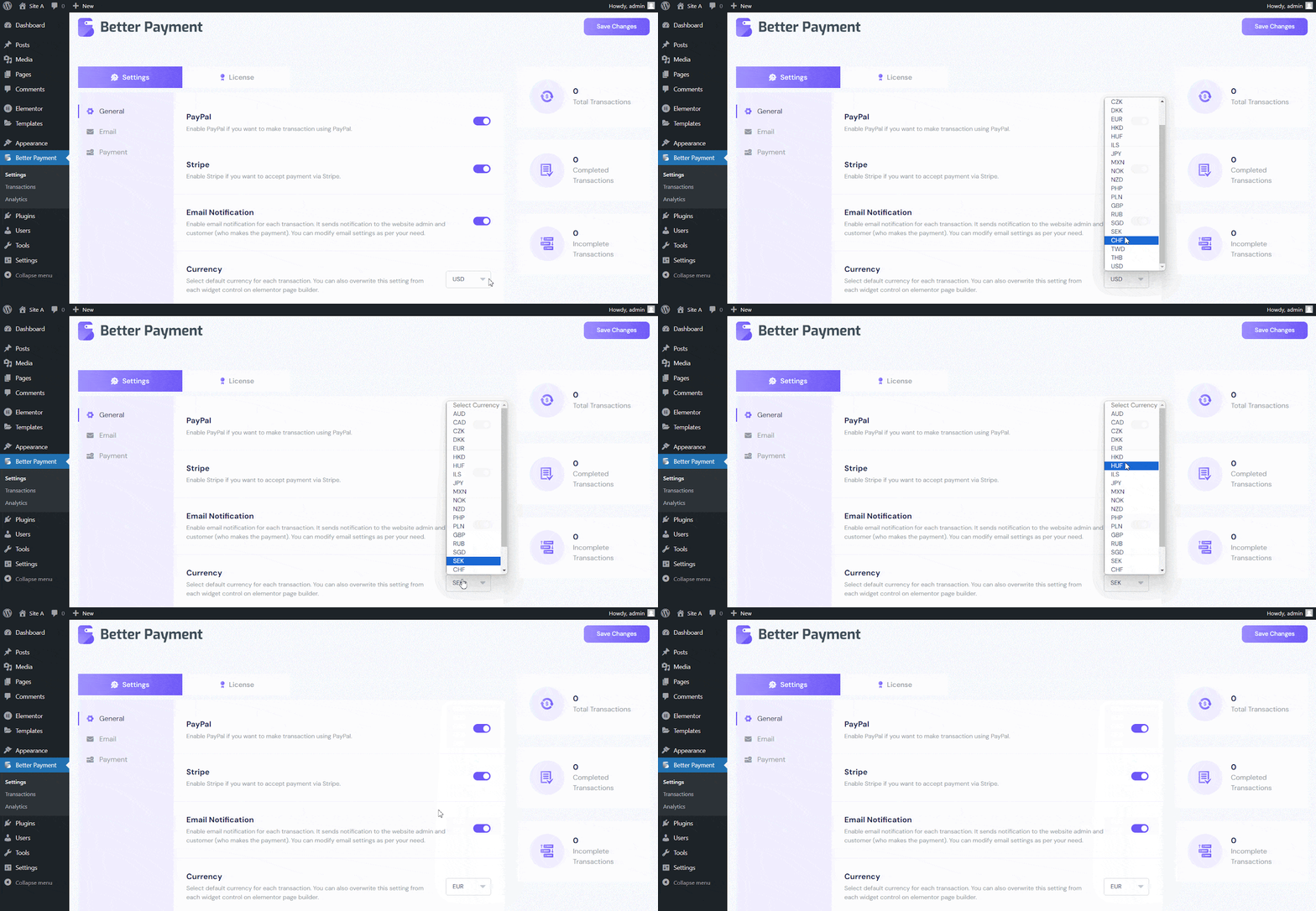
What about the form itself? The Better Payment widget essentially creates a checkout form on your pages. This form is highly customizable. You can toggle on fields for customer name, email and other info you might need, and even customize placeholder texts or add custom fields to gather extra details. Plus, it can serve as a donation form, a product payment form or a subscription sign-up form; all styled directly within Elementor. Some of the useful features that Better Payment offers include:
- Multiple payment gateways: Out of the box, Better Payment lets your customers pay via PayPal, Stripe, or Paystack (a popular gateway in certain regions).
- One-click checkout forms: The plugin provides ready-to-use form templates and a very quick setup. In fact, you can add a fully functional Elementor checkout form with one click by dragging the widget.
- Customizable fields and design: You have control over what information to collect. Need the customer’s phone number or address? You can add fields. Running an Elementor donation form and want to show suggested amounts? Just toggle on an amount list and define those values. All of this can be styled and configured within Elementor’s interface.
- Email notifications and messages: Better Payment automatically handles sending email receipts/notifications to both the site admin and the customer after each successful transaction. You can also configure custom success messages or error messages to display on your site after payment.
- Transaction management in WordPress: One standout advantage of Better Payment is that it keeps a record of all transactions right in your WordPress dashboard. You can view a list of payments, filter them by date or status and even export the data (CSV) for bookkeeping.
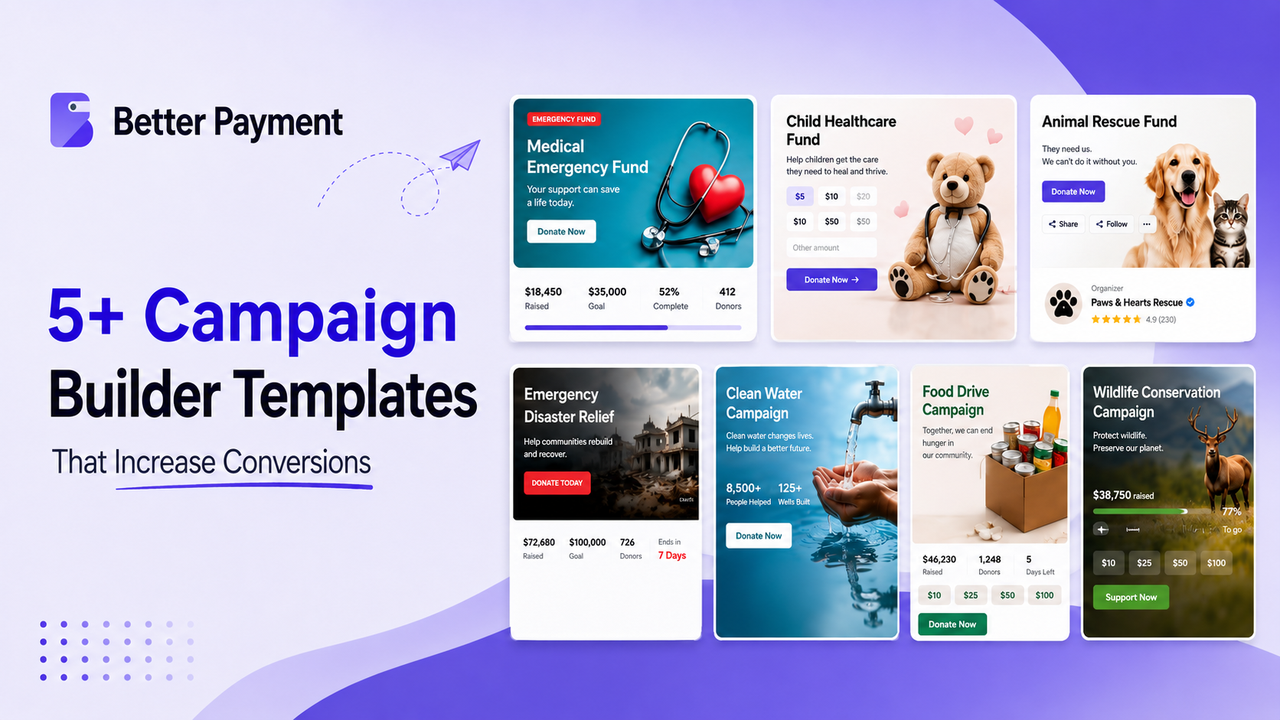
- Donations, subscriptions and more: You can set up recurring payments (subscriptions) for services or memberships, collect donations and fundraising contributions, or even integrate with WooCommerce to create quick-buy forms.
- Elementor integration and compatibility: Since Better Payment is built for Elementor, it works seamlessly with Elementor’s design system. It also works with Elementor’s own Form widget if you prefer. And importantly, you do not need Elementor Pro to use Better Payment.
Elementor PayPal Widget vs Better Payment: Key Differences
So, Elementor PayPal Widget vs Better Payment – which one should you choose? The answer depends on what exactly you need for your website’s checkout experience. Let us break down the key differences in a friendly comparison.
Both solutions help you accept payments on your Elementor site, but they go about it in distinct ways. Below, we will explore their differences in terms of payment methods, ease of use, checkout experience, features and cost considerations.
Payment Methods & Gateways
The built-in Elementor widget is limited to one gateway: PayPal. If all you ever need is to let people pay you via PayPal, this might be sufficient.
Better Payment, on the other hand, supports PayPal and other popular payment processing platforms like Stripe (credit/debit cards) and Paystack. This gives customers a choice.
If someone does not have or want to use a PayPal account, they can still have other options with Better Payment. So, in terms of supported payment gateways, Better Payment is more flexible.
Ease of Setup
The Elementor PayPal widget is quite straightforward. You drag it in, paste your PayPal account email, set the price and details and you are done.
Better Payment, on the other hand, requires installing a separate plugin (which is quick via the WordPress repository) and doing an initial setup. The actual job of adding the form to a page is comparable to the PayPal widget: open the Elementor editor, drag the Better Payment widget onto your page and toggle on the payment methods you want (enable PayPal, enable Stripe) and input the necessary keys or emails.
If we consider Elementor PayPal Widget vs Better Payment on quickness to publish something, the PayPal button might take the edge (since it has fewer steps). But Better Payment’s setup is a one-time effort; after you set up everything, adding payment forms across your site is a breeze.
Checkout Experience & Customization
This is a big one. Elementor’s PayPal button offers a basic checkout experience: click and go to PayPal. There is not much you can customize about the flow beyond what PayPal allows on their site.
In contrast, Better Payment keeps more of the process on your site. For instance, with a Stripe card payment, the customer can enter their card details in a secure form right on your page, completing the payment without a redirect.
Even with PayPal, Better Payment can open the PayPal checkout in a new tab while still recording the transaction on your site. You can add helpful field instructions, adjust the layout and basically ensure a more user-friendly checkout or Elementor donation form tailored to your cause.
Feature Set & Scalability
When comparing Elementor PayPal Widget vs Better Payment, think about your future needs, too. Better Payment is actively developed and packed with features that can scale with you.
- Need to handle subscriptions for a membership site? Better Payment has subscription forms and even a way to manage subscribers and recurring payments.
- Planning to run multiple fundraising campaigns? Better Payment allows multiple forms, each with its own goal or purpose.
Plus, Better Payment provides an analytics dashboard for transactions, exportable transaction logs, custom email confirmations, etc.
Cost Considerations
The Elementor PayPal widget requires an active Elementor Pro license. If you already have it for other reasons, the widget comes at no extra cost. But if you were considering upgrading to Pro only to get PayPal payment capability, you might want to pause.
Better Payment’s core plugin is free and gives you PayPal integration for Elementor with other gateways, features, etc and you will not require Elementor Pro for that. This is huge for many small businesses or personal site owners: you can stick with Elementor Free and still add a PayPal payment solution.
How to Use Better Payment on Your Elementor Site (Quick Guide)
If you have decided to give Better Payment a try (or are at least curious), here is a quick overview of how to set it up on your Elementor website. Do not worry, it is quite straightforward.
Step 1: Install and Activate the Plugin
In your WordPress dashboard, go to ‘Plugins → Add New’ and search for‘Better Payment’. Install and activate the Better Payment plugin.
Step 2: Configure Payment Credentials
Before using the widget, you need to connect your payment accounts. For PayPal, you can do this from Better Payment → Settings → Payment in your dashboard. Choose PayPal and paste your business email ID in the field provided.

Step 3: Add Payment Form via Elementor & Adjust Settings
Go to the page (or template) where you want to insert the payment form and click Edit with Elementor. In the Elementor panel, find the Better Payment widget (you can search for “Better Payment”). Drag and drop it onto your page where you want the form.
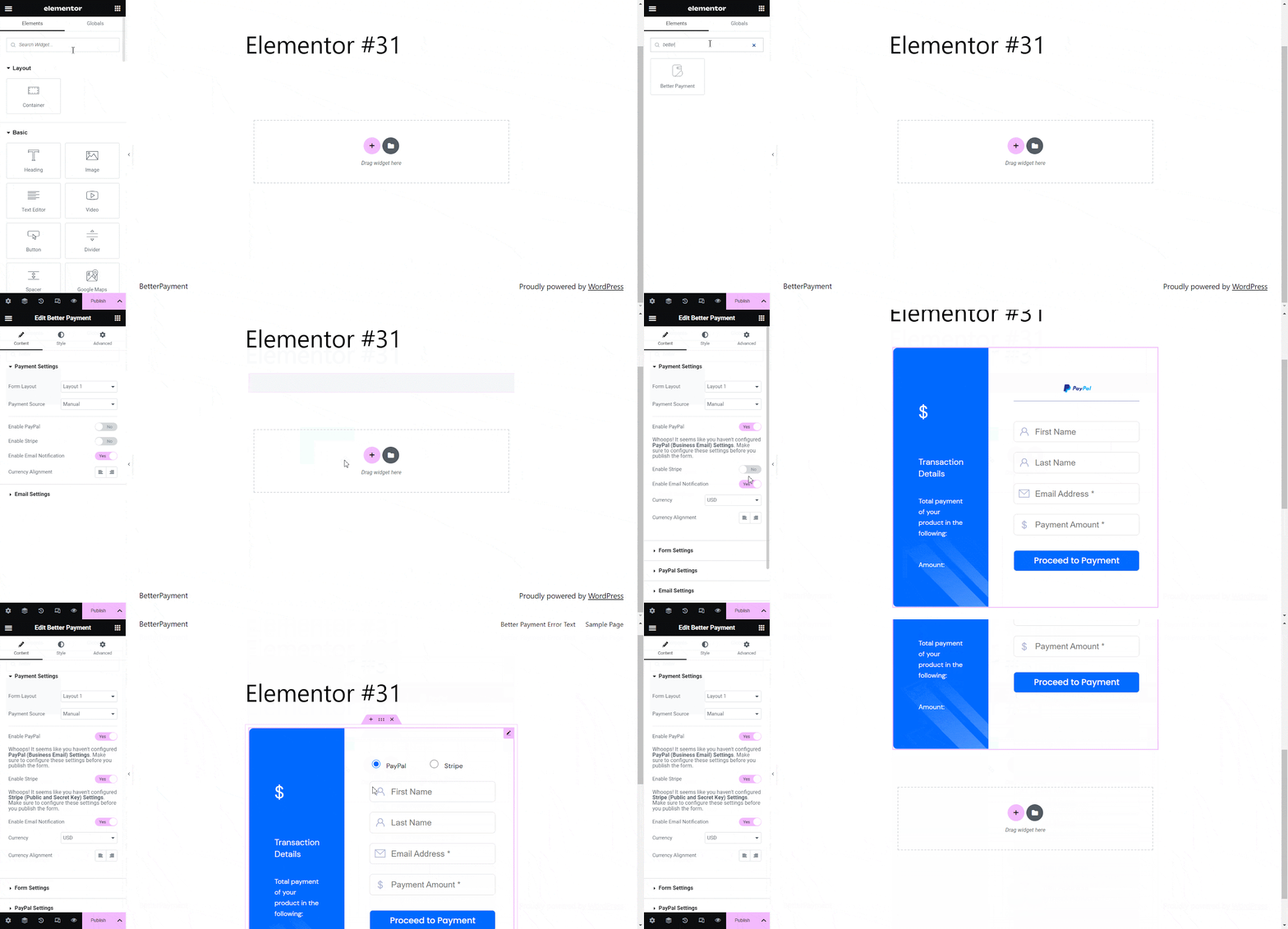
Under Payment Settings, you will see toggle switches for PayPal, Stripe, Paystack, etc. Turn on the ones you want to offer. For instance, toggle PayPal to “Yes” to enable PayPal on this form. Do the same for Stripe (toggling it on will reveal fields for the Stripe keys if not set globally).
Next, expand the ‘Form Settings’ section of the widget. This is where you customize what information to collect. You can toggle on fields like Name, Email, Phone, etc., depending on what you need. This step lets you shape the Elementor checkout form to fit your scenario perfectly.
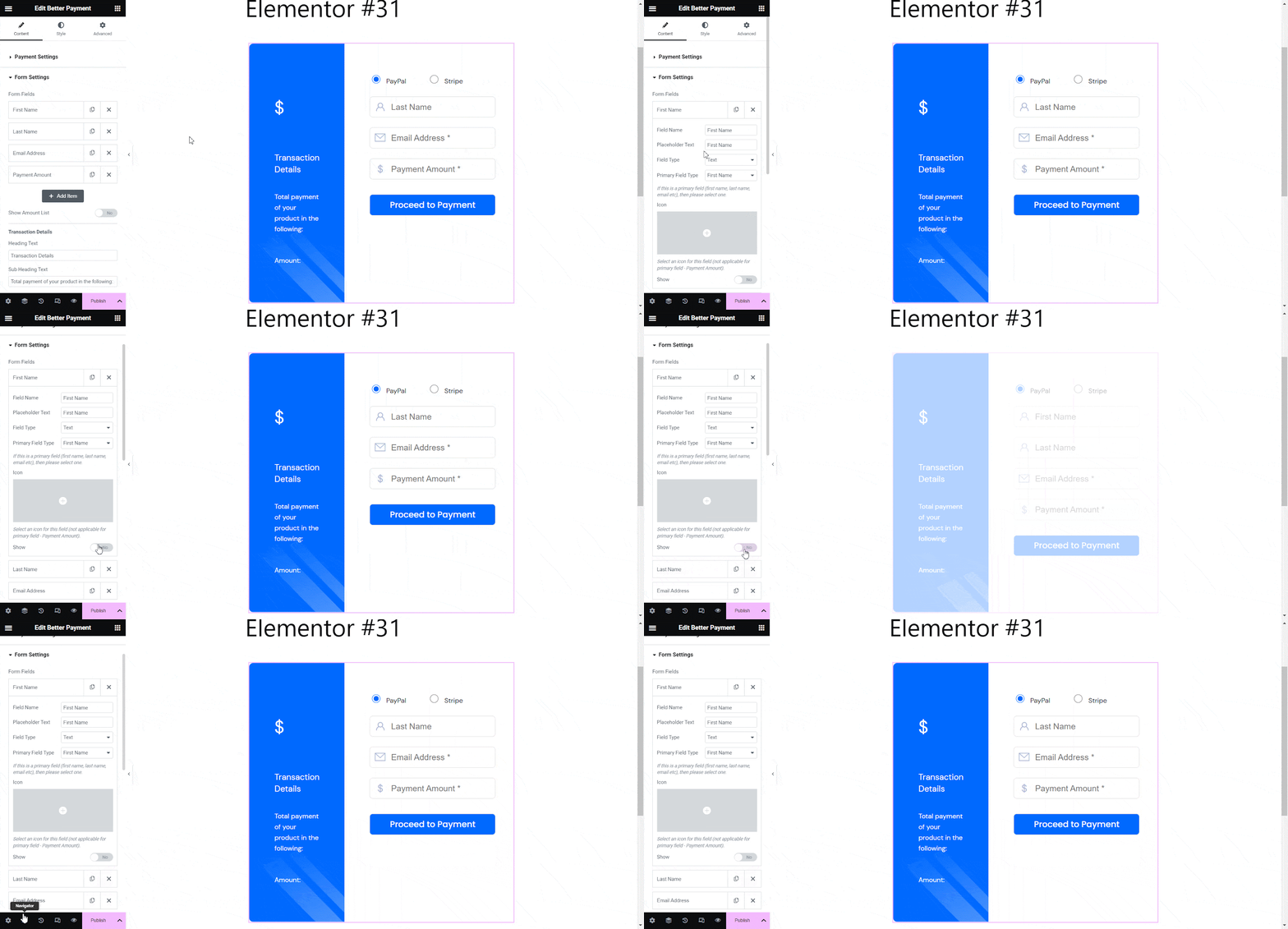
Like any Elementor widget, you can switch to the ‘Style’ tab to change how the form looks. You have options to tweak fonts, colors, button styles, etc. Make it match your branding so the form feels like a natural part of your website. It is always wise to test before going live. If you leave the form in Test Mode (PayPal sandbox or Stripe test keys), you can try submitting a payment to see the flow without actually processing money. Once everything works fine, update the page to save changes.
Now your form is live and will process real transactions. If at any point you get stuck, Better Payment’s documentation (and support team) is there to help. But from our experience, the plugin is quite intuitive.
Final Verdict: Elementor PayPal Widget vs Better Payment
If you’re running a simple operation, already have Elementor Pro, and only need to collect occasional payments or donations via PayPal, the built-in Elementor PayPal widget might do the trick.
However, if you find that approach limiting (you want to offer credit card payments directly, customize the checkout form or avoid the cost of Elementor Pro), then Better Payment is likely the smarter choice.
Better Payment does it all when you need a flexible Elementor payment solution that grows with your business. It allows you to create a user-friendly Elementor checkout form with multiple payment options.
Elementor PayPal Widget vs Better Payment is not a battle with a single winner; it is about what is the right tool for you. We hope this comparison helped clarify the differences. If you have found this blog helpful, share your opinion with our Facebook community. You can subscribe to our blogs for valuable tutorials, guides, knowledge, tips, and the latest WordPress updates.